
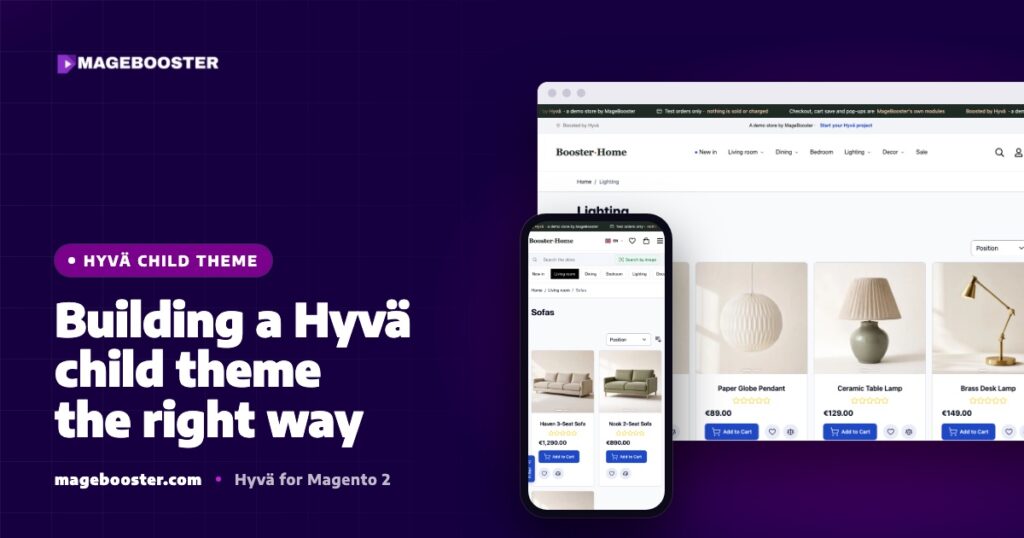
Hyvä now runs natively on Magento 2.4.9 and on Mage-OS. We have tested both. What this means for your store →
In short
A Hyvä child theme should inherit from Hyva/default and override as little as possible. Copy only the templates and layout files you actually change, keep the Tailwind content paths pointing at the parent, and build CSS as part of every deploy. That keeps updates simple and your store fast.
Almost every Hyvä store starts with the same decision: change the default theme directly, or build a child theme on top of it. The answer is always a child theme. How you build it decides whether Hyvä updates take an afternoon or a week.
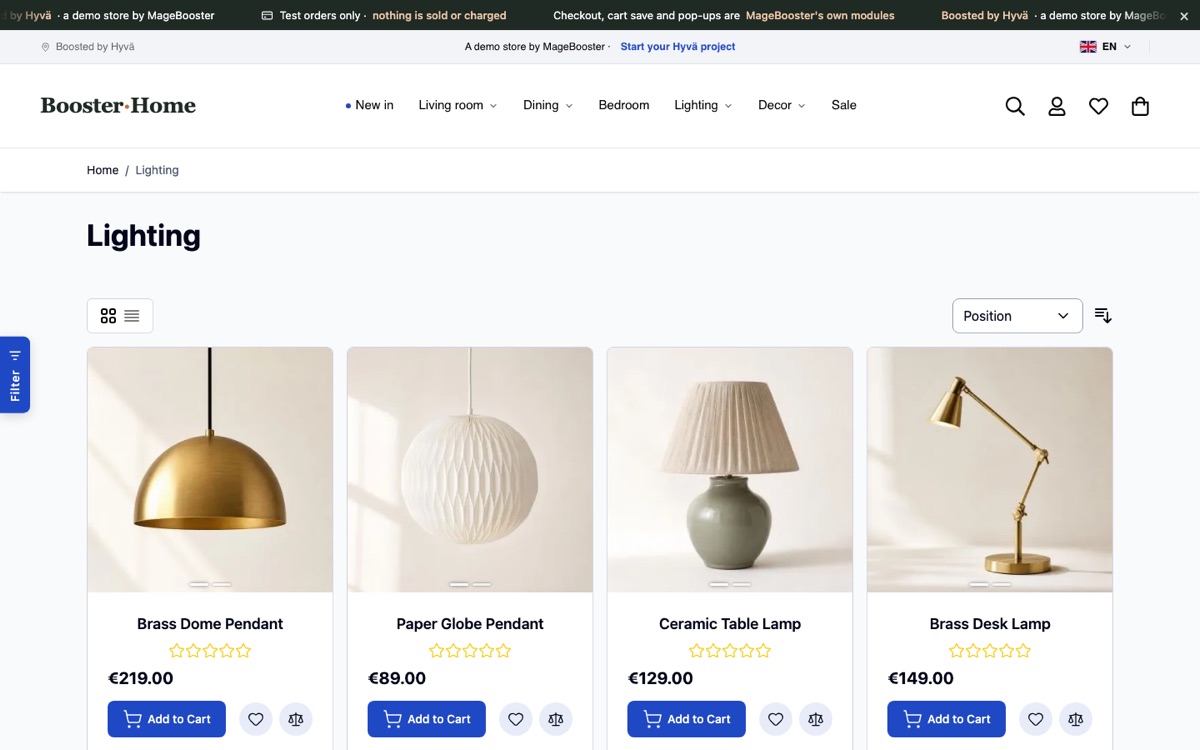
This guide explains how we set up Hyvä child themes for client stores and for our own demo store. It covers the files you need, what to override, what to leave alone, and the mistakes we see most often in stores that come to us for a Hyvä project.
Why a child theme, and not a copy
Hyvä ships its default theme as a Composer package. When Hyvä releases a fix or an improvement, Composer updates that package in the vendor folder.
If you edit those files directly, your changes disappear on the next update. If you copy the whole theme into your own folder, you keep your changes but lose every future improvement, because nothing inherits from the original any more.
A child theme sits in between. Magento’s theme fallback looks in your theme first and falls back to the parent for everything you have not overridden. You own your differences, and Hyvä keeps owning the rest.
- Updates to the parent theme reach your store automatically.
- Your diff stays small, so reviewing an update is quick.
- Developers can see at a glance what is custom and what is standard.
The minimum files
A Hyvä child theme is a normal Magento 2 theme. It lives in app/design/frontend/Vendor/theme and needs two small files to register.
The first is theme.xml, which names the parent:
<theme xmlns:xsi="http://www.w3.org/2001/XMLSchema-instance"
       xsi:noNamespaceSchemaLocation="urn:magento:framework:Config/etc/theme.xsd">
    <title>Vendor Default</title>
    <parent>Hyva/default</parent>
</theme>
The second is registration.php:
<?php
use Magento\Framework\Component\ComponentRegistrar;

ComponentRegistrar::register(
    ComponentRegistrar::THEME,
    'frontend/Vendor/default',
    __DIR__
);
Next comes the web/tailwind folder. Hyvä’s documentation tells you to copy it from the parent theme, because each theme builds its own stylesheet. This folder holds the Tailwind configuration, the source CSS and the package.json with the build scripts.
After that, run bin/magento setup:upgrade, assign the theme to your store view under Content > Design > Configuration, and build the CSS once. You now have a working child theme that looks exactly like Hyvä default.
Override as little as possible
The most common problem we see is a child theme that contains half of the parent. Someone needed to change one line in the header, so they copied the whole Magento_Theme template folder. Two years later nobody knows which of those files were actually changed.
Our rule is simple: one template overridden means one file copied. Before copying a template, we check whether a smaller change will do.
- Layout XML first. Moving, removing or adding blocks is a layout change, not a template change. A
default.xmlor page-specific layout file in your theme can do most of this without touching any.phtmlfile. - Tailwind classes second. Many visual changes are just different colours, spacing or fonts. Those belong in the Tailwind configuration, not in copied templates.
- Template override last. If the markup itself must change, copy that single template to the same path in your theme and change it there.
When we do copy a template, we add a short comment at the top saying what changed and why. It costs ten seconds and saves a lot of guessing during the next update.
Keep Tailwind looking at the parent
Tailwind only generates CSS for classes it finds in your source files. That is why Hyvä stylesheets are small: unused utilities never make it into the build.
The flip side is that Tailwind must scan every template your store renders. That includes the templates in your child theme and the templates still served from the parent theme in the vendor folder. The Tailwind configuration you copied from Hyvä already points at the parent theme, and you should keep that path when you edit it.
Hyvä-compatible modules can also bring their own templates and Tailwind sources. Hyvä provides a command, bin/magento hyva:config:generate, that writes a list of those module paths for the build to pick up. Run it whenever you add or remove a Hyvä-compatible module.
If a class works in development but disappears in production, a missing content path is the usual reason. We explain the full build in our post on Tailwind design tokens and the build pipeline.
Translations, assets and theme settings
A few more things belong in the child theme and are easy to forget.
- Translations. Theme-level strings go in
i18n/de_DE.csvand similar files inside your theme. Store-view specific wording was one of the pitfalls we hit on our multi-language demo store, so test every store view, not just the default one. - Images and fonts. Theme images such as homepage tiles belong in the theme’s
webfolder. On our demo store they are WebP, 720 pixels wide and compressed at around quality 72. - Colours your team may want to change. We expose header and brand colours in Stores > Configuration, so a marketing team can change them without a developer. The Tailwind tokens are rebuilt from config and theme files at deploy.
Fonts deserve a short note. Self-hosting a single font family with a small number of weights is usually lighter than loading several from a third-party service.
Build CSS as part of every deploy
The compiled stylesheet is a build artefact. It should be generated during deployment, not edited by hand and not committed after someone ran a build on a laptop.
A typical deploy step looks like this:
bin/magento hyva:config:generate
npm --prefix app/design/frontend/Vendor/default/web/tailwind ci
npm --prefix app/design/frontend/Vendor/default/web/tailwind run build-prod
bin/magento setup:static-content:deploy -f en_GB de_DE
The exact name of the build script depends on your Hyvä version, so check the package.json in your theme. On our own stack we run Magento in production mode with static content deploy, so the CSS build always runs before static content is generated.
Common mistakes we fix
These are the issues we meet most often when we review an existing Hyvä store.
| Mistake | What it causes | Fix |
|---|---|---|
| Whole parent folders copied into the child | Updates never arrive, hard reviews | Diff against the parent and delete unchanged files |
| Tailwind content path to the parent removed | Missing styles on standard pages | Restore the parent path in the config |
| Luma scripts added back through layout XML | RequireJS and jQuery on a Hyvä page | Remove them and rebuild the feature with Alpine.js |
| CSS built locally and committed | Production styles out of sync with templates | Build CSS in the deploy pipeline |
| Inline styles in templates | Inconsistent design, harder theming | Move values into Tailwind tokens |
The third row matters most for speed. A single old extension that loads its Luma JavaScript can undo much of what Hyvä gains, which is why we audit every extension before a migration.
FAQ
Can I have more than one child theme?
Yes. Magento supports chains of themes, so you can have a base child theme for shared work and a second theme per brand or store view on top of it. Keep the chain short, because every level makes debugging a little harder.
Should I start from Hyvä default or from Hyvä UI?
Hyvä default is always the parent theme. Hyvä UI is a library of ready-made components that you copy into your theme as needed. Both approaches end in the same place: a child theme of Hyva/default with your own templates.
Do I need a child theme if I only change colours?
Yes. Even small changes need somewhere to live that survives updates. A child theme with only a Tailwind configuration and no templates is perfectly valid, and it is the easiest kind to maintain.
Want a Hyvä theme that stays easy to update? See how we work on our Hyvä theme development page, or get in touch to talk about your store.
 English
 German
 Dutch
Dutch Turkish