
Hyvä now runs natively on Magento 2.4.9 and on Mage-OS. We have tested both. What this means for your store →
In short
We test Hyvä stores with the Lighthouse 13 CLI in headless Chrome and take the median of 3 runs. We test the real URL behind the CDN, with warm caches and a normal browser user agent. Most bad or suspiciously good scores come from the test setup, not from the store.
Lighthouse numbers are everywhere in Hyvä discussions, including on our own pages. A score of 94 means nothing unless you know how it was measured. Run the same page twice and you can get two different numbers. Run it the wrong way and you can get a perfect score for a page that never loaded.
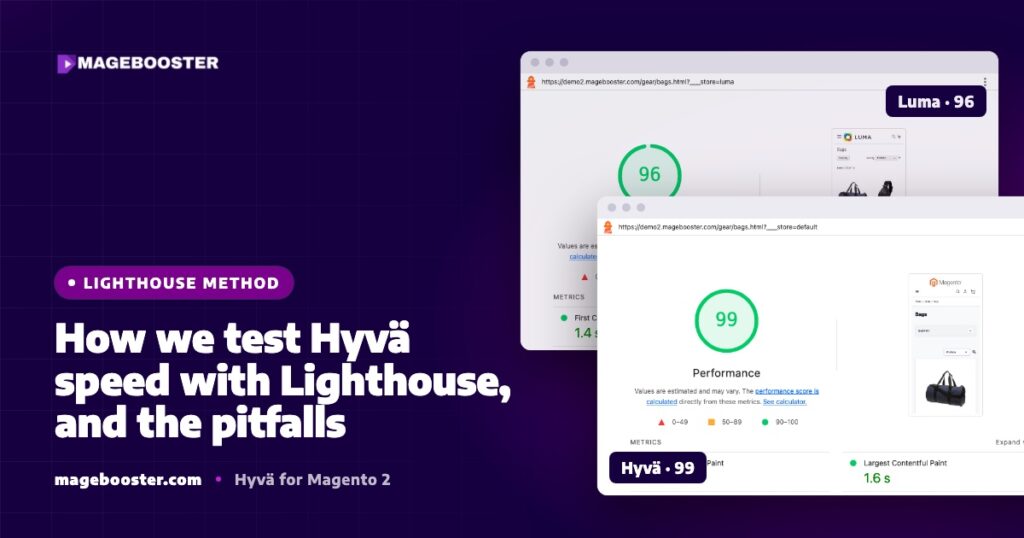
This post explains the method we use when we measure Hyvä and Luma stores. It also lists the pitfalls we have hit ourselves, so you can avoid them when you check your own store.
Why one Lighthouse run is not enough
Lighthouse simulates a mid-range phone on a throttled connection. The result depends on the page, but also on the server’s response time at that moment, the CDN, and the machine running the test.
A single run can be an outlier in either direction. That is why we never quote one run. We run each page three times and use the median.
We also test the three page types that matter most for a shop: home, category and product. A fast home page with a slow product page is not a fast store.
Our method, step by step
- Use the Lighthouse CLI. We run Lighthouse 13 from the command line, not from a browser tab with extensions installed. Browser extensions can inject scripts and change the result.
- Use headless Chrome. We start Chrome with
--headless=new, which uses the same rendering engine as normal Chrome. - Test the real URL. We test the public URL behind the CDN, not a server IP or an internal hostname. Customers reach the store through the CDN, so the test should too.
- Purge and warm the cache first. After a deploy we purge the cache and request each page once before measuring. Otherwise the first run measures a cold cache.
- Run three times per page. We take the median of 3 mobile runs, plus 1 desktop run.
- Record the full report. We save the JSON output, so we can look at LCP, total blocking time, request count and transfer size, not just the score.
A typical command looks like this:
lighthouse https://www.example.com/women/dresses.html \
  --only-categories=performance \
  --chrome-flags="--headless=new" \
  --output=json --output-path=./category-run1.json
For the desktop run we add --preset=desktop. Mobile is the default form factor.
Pitfall 1: bot protection blocks the test
This one surprised us. Our nginx configuration blocks bot user agents that contain “lighthouse” or “headless”. That is a sensible rule against scrapers, but it also blocks the test.
When the request is blocked, the server returns a 403 error page. Lighthouse then measures that small error page, and the score can look excellent. The number is real, but it describes the wrong page.
The fix is to run the test with a normal browser user agent, or to allow your own test machine. Always check the final URL and the screenshot in the report before you trust a score.
Pitfall 2: testing around the CDN
Testing the origin server directly can give a slower result than customers see, because the CDN is not caching anything. Testing a page that is not yet cached at the CDN gives a different result again.
We also hit a less obvious version of this problem with images. Product images were requested and cached at the CDN before Magento had created its resized versions. The CDN kept serving the wrong response after the resize had finished.
The fix was to run catalog:images:resize first, then purge the CDN cache by hostname. We cover the full image setup in serving WebP product images behind Cloudflare.
Pitfall 3: developer mode and missing static content
Magento in developer mode generates files on request and skips many optimisations. A Lighthouse score from developer mode says almost nothing about production.
We only measure in production mode, after static content deploy and with indexers on schedule. The setup is described in production mode and deploys for Hyvä stores.
Pitfall 4: comparing lab scores that are not comparable
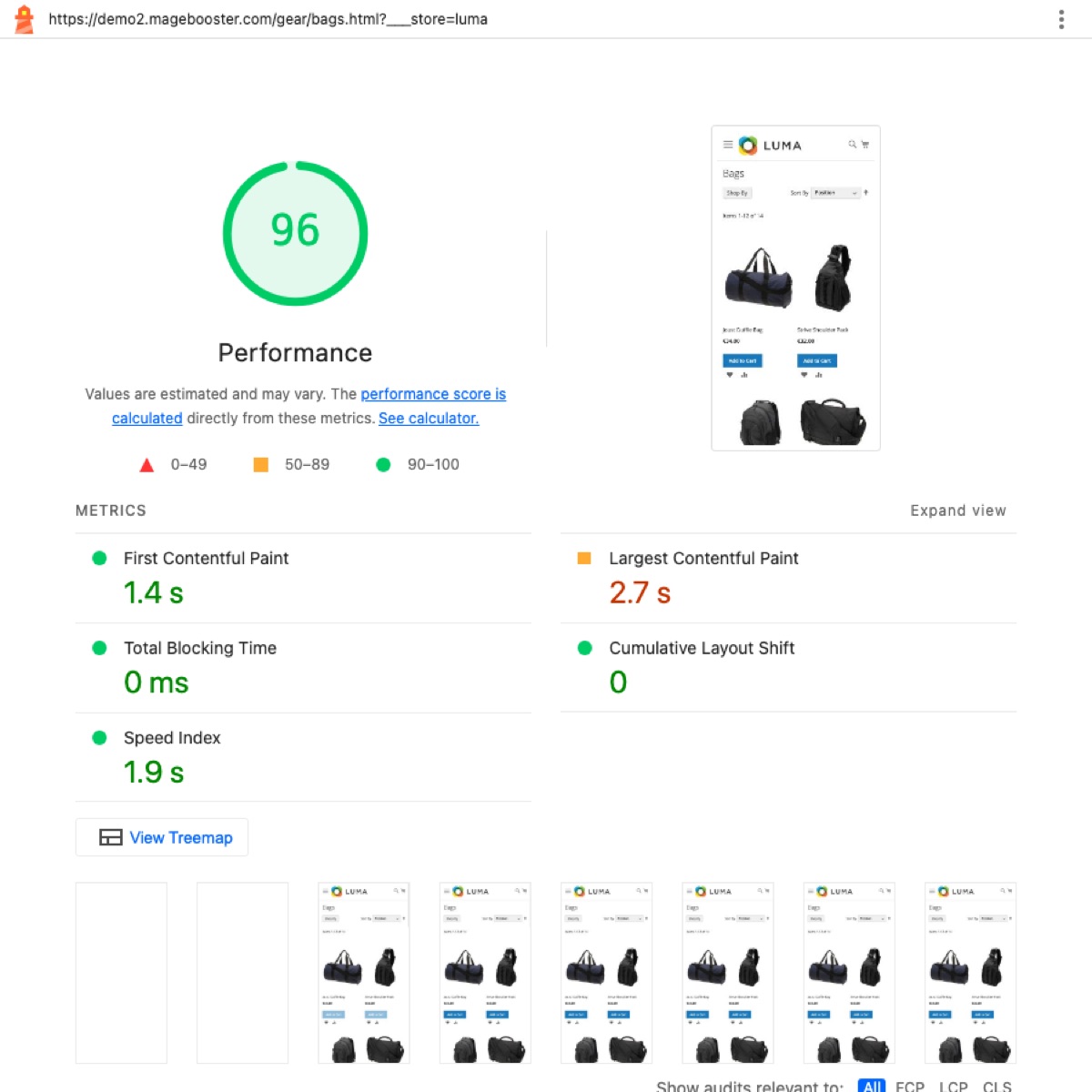
A clean Luma theme on a fast server behind Cloudflare, in production mode, also scores well. In our own benchmark, clean Luma scored 88 to 99 on mobile and Hyvä scored 93 to 100.
The bigger difference was in what the browser has to load:
| Metric | Hyvä | Luma |
|---|---|---|
| Page weight (home/category/product) | 226/195/206 KB | 962/756/805 KB |
| Requests | 15–19 | 251–275 |
| JavaScript | ~26 KB | 463–524 KB |
| Mobile LCP | 1.5–1.6 s | 2.3–2.5 s |
Real Luma stores with extensions and tracking scripts usually score much lower than a clean install. On real low-end phones, half a megabyte of JavaScript matters more than the lab shows. So we compare load, not only the score. The full numbers are in our Hyvä vs Luma benchmark.
Lab data versus field data
Lighthouse is lab data: one simulated device, one location, one moment. It is excellent for comparing builds and catching regressions.
Field data comes from real visitors, for example through the Chrome User Experience Report in Search Console. It reflects real phones, real networks and real tracking scripts.
We use Lighthouse to set targets and to check every release. After launch we look at real-user data and checkout completion, because that is what customers actually experience. Our Core Web Vitals checklist covers the field metrics in more detail.
FAQ
Why is my PageSpeed Insights score different from yours?
PageSpeed Insights runs Lighthouse on Google’s servers, from a different location and at a different moment. It also shows field data when enough exists. Small differences between tools are normal, which is why we use a fixed method and a median.
Should we test logged-in pages?
For speed targets we test public pages that are cached for guests. Cart, checkout and account pages are better checked with real-user data and functional tests.
What score do you guarantee at launch?
A minimum Lighthouse Performance score of 89 on mobile for home, category and product pages. It applies on a Hyvä-optimised server and with the images and scripts agreed in the project plan.
Want to know how your current store really performs? See how Hyvä compares with Luma, or ask us for a Magento audit with measurements made the way we describe here.

 English
 German
 Dutch
Dutch Turkish