
Hyvä now runs natively on Magento 2.4.9 and on Mage-OS. We have tested both. What this means for your store →
In short
In a standard Hyvä theme, colours live in the Tailwind configuration and need a developer and a rebuild to change. We expose the header and brand colours in Stores > Configuration and pass them to the theme as CSS variables. Tailwind keeps its design tokens, and the team changes colours without touching code.
Hyvä themes are built with Tailwind CSS. Colours, fonts and spacing are defined as design tokens in the theme’s Tailwind configuration. When the theme is built, Tailwind writes only the classes the templates actually use into one small stylesheet.
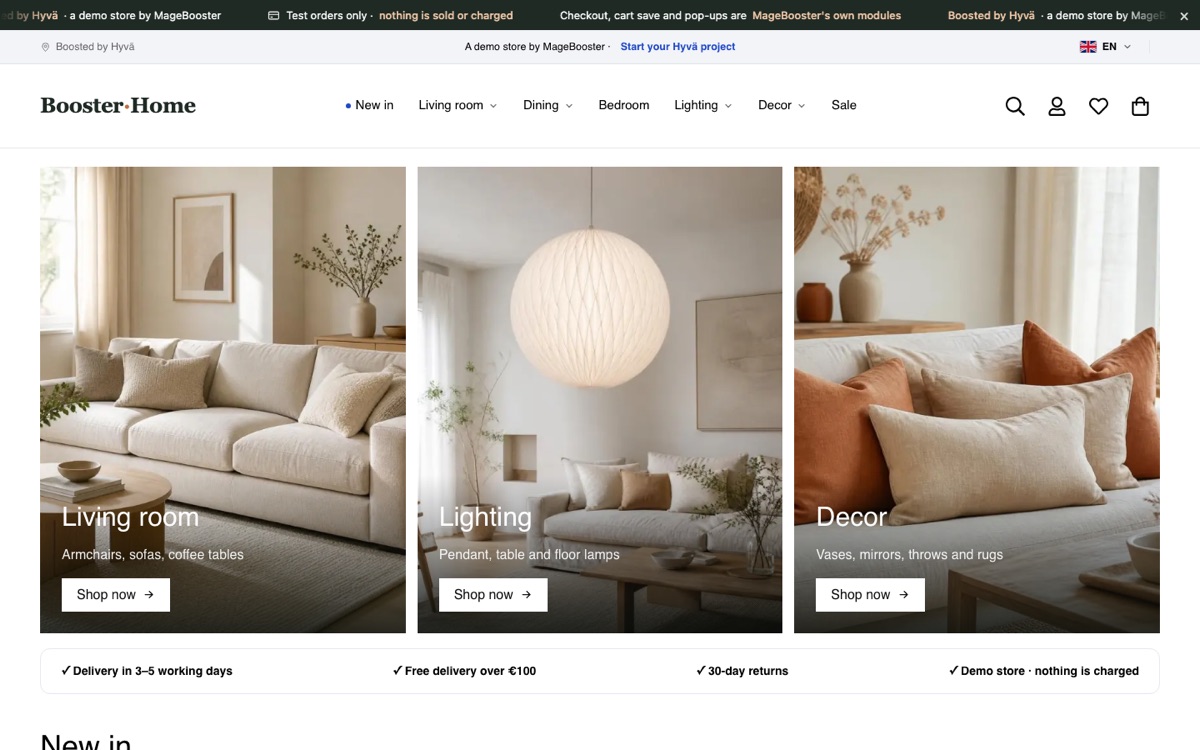 The header and brand colours of our Hyvä demo store can be changed in Stores > Configuration.
That is great for speed. It also means a colour change is a code change. Someone edits the configuration, rebuilds the CSS and deploys. For a marketing team that wants a darker header for a sale weekend, that is too slow.
This post shows how we solved it, and where the limits are.
Where Hyvä colours normally live
In a Hyvä child theme, the Tailwind configuration sits in the theme’s web/tailwind folder. It defines named colours such as primary and secondary. Templates then use classes like bg-primary or text-secondary.
The build step scans the templates, finds the classes in use and generates the CSS. We explain this pipeline in Tailwind in Hyvä: design tokens and the build pipeline.
Because the colour values are written into the generated CSS, changing them means running the build again. In production mode that also means a deploy.
The idea: tokens point to CSS variables
CSS custom properties, often called CSS variables, solve this neatly. Instead of a fixed hex value, a Tailwind token points to a variable. The stylesheet stays the same, and only the value of the variable changes.
The value of the variable comes from Magento configuration. A small block in the page head reads the configured colours and prints them as variables.
<style>
:root {
  --brand-header-bg: <?= $escaper->escapeCss($headerBg) ?>;
  --brand-primary: <?= $escaper->escapeCss($primary) ?>;
}
</style>
Templates use the variable through the tokens, or through Tailwind’s arbitrary value syntax, for example bg-[var(--brand-header-bg)]. Every element that uses the token follows the new value automatically.
The default values still live in the theme files. If nobody sets a colour in the admin, the theme looks exactly as designed.
What the team sees in the admin
We add a section under Stores > Configuration with the colours that make sense to change. In most stores that is a short list:
- Header background and header text.
- Primary brand colour, used for buttons and links.
- Secondary or accent colour, used for badges and highlights.
- Top bar or announcement bar colour.
Each field accepts a hex colour, and the value is validated before it is saved. A mistyped value should never break the storefront.
Because these are normal Magento configuration fields, they work per website and per store view. A German store view can have a different header colour from the English one. That fits well with the setup described in multi-language Hyvä stores.
After saving, the team flushes the full-page cache from the admin, and the new colours are live. No rebuild and no deploy is needed.
How we build it, step by step
- Agree with the team which colours they really need to change.
- Add those fields to a configuration section in a small module, with sensible defaults.
- Point the matching Tailwind tokens in the child theme to CSS variables.
- Add a head block that prints the configured values as variables, escaped for CSS.
- Replace hard-coded colour classes in the header and buttons with the tokens.
- Test every store view with the default colours and with a changed set.
The work is small, but it touches the header, buttons and links on every page. That is why we test it on staging before it goes live, like any other theme change.
What stays in code, on purpose
Not every colour should be editable. Giving a team twenty colour pickers is a quick way to lose the design.
We keep these in the theme files:
- Neutral greys and borders. They hold the layout together and rarely need to change.
- Status colours. Error, warning and success colours carry meaning in forms and checkout.
- Fonts and spacing. These belong to the design system, not to a campaign.
Those tokens are rebuilt from the theme files at deploy, like any other code change. The split is simple: brand moments in the admin, structure in code.
Contrast and accessibility
An editable colour can also become an unreadable colour. White text on a light yellow header looks fine to the person who chose it on a large monitor. On a phone in sunlight it is hard to read.
We handle this in two ways. Each background field has a matching text colour field, so the team chooses them as a pair. We also recommend checking every new pair with a contrast checker before saving.
For more on this topic, see accessibility in Hyvä themes.
Does this affect speed?
No, not in a measurable way. The variables add a few lines of inline CSS to the page head. The main stylesheet stays one small cached file.
The page is still fully cacheable. The colour values are part of the cached HTML for each store view, which is why the full-page cache must be flushed after a change.
This approach is part of how we keep Hyvä stores easy to run after launch. Our demo store uses it too, together with the speed setup in our Hyvä vs Luma benchmark.
FAQ
Can we change fonts from the admin too?
It is technically possible with the same variable approach. We usually keep fonts in code, because a font change also affects line height, spacing and loading speed.
Will a Hyvä update overwrite our admin colours?
No. The values are stored in Magento configuration and the logic lives in your child theme or a small module. Hyvä updates do not touch either of them.
Can we schedule a colour change for a campaign?
Not by default, since Magento configuration has no schedule. It can be added with a small module if campaigns are frequent. For full campaign pages, our Mage PageBuilder block library is usually the better tool.
Want a Hyvä theme your team can adjust without a developer? See our Hyvä theme development service and Mage PageBuilder, or contact us to talk about your store.
 English
 German
 Dutch
Dutch Turkish