
Hyvä now runs natively on Magento 2.4.9 and on Mage-OS. We have tested both. What this means for your store →
In short
On a Hyvä store the theme is no longer the heaviest thing on the page. Product images usually are.
Keep JPG sources, let Magento resize them, serve WebP copies, and make sure the main product image is never lazy-loaded.
Hyvä removes most of the JavaScript and CSS weight that Luma carries. Once that weight is gone, the images are what is left.
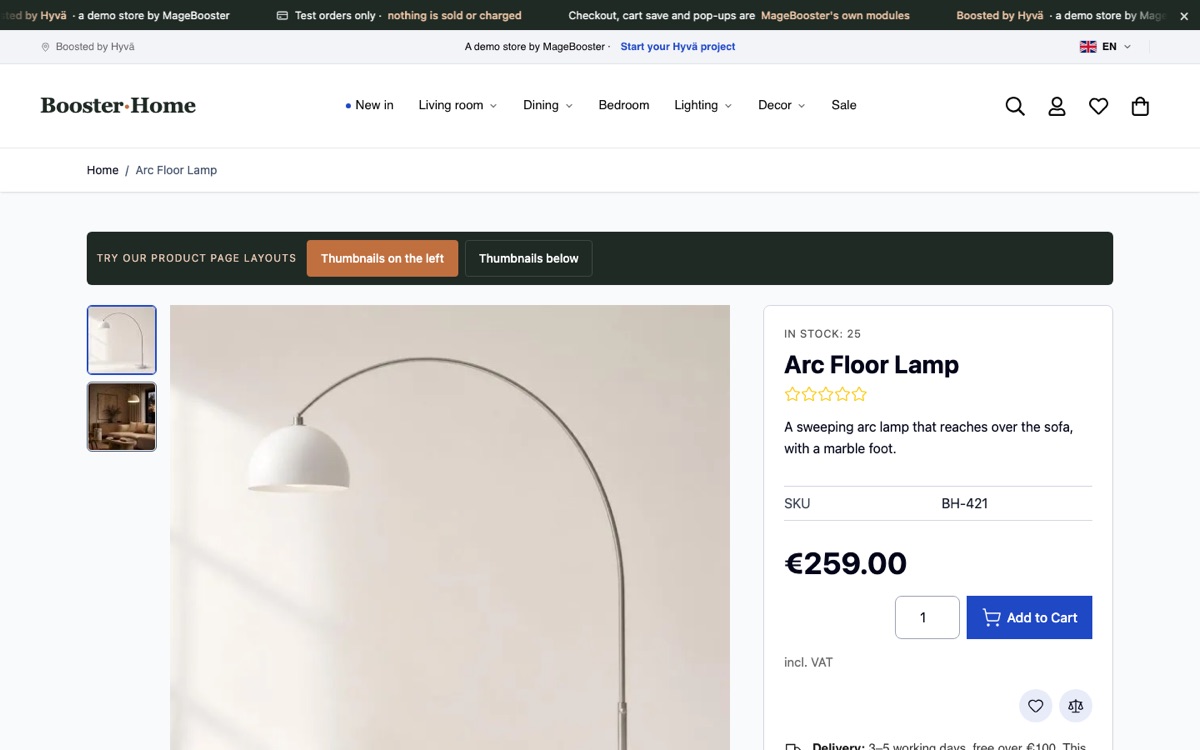
On most product and category pages, the largest element on screen is a product photo. That makes your image strategy the biggest lever you still control for Largest Contentful Paint (LCP).
This post describes the approach we use on Hyvä stores: how we prepare images, how we serve them, and which mistakes cost us time.
Why images matter more after a Hyvä move
In our Hyvä vs Luma benchmark, a clean Hyvä page weighed around 200 KB and shipped about 26 KB of JavaScript.
A single unoptimised product photo can be heavier than that whole page.
So on Hyvä, one oversized hero image or a gallery that loads every photo at once can undo much of what the theme gives you.
The good news is that images are easy to measure and easy to fix, once the pipeline is set up properly.
Start with consistent source images
Performance starts before the upload. Consistent source images make every later step simpler.
- One aspect ratio per image type. If every product photo has the same ratio, the grid never jumps and Magento’s resized copies all look the same.
- A neutral, consistent background. This keeps category pages calm and makes files compress better.
- A fixed number of images per product. On our Hyvä demo store we use two consistent studio-style images per product, so every card and gallery behaves the same way.
- Sensible source size. Upload large enough for zoom, but not camera originals of many megabytes.
Consistency is also a conversion topic. Customers compare products faster when the photos follow the same rules.
Keep JPG sources and let Magento resize
It is tempting to upload WebP files directly. We tried it, and it does not work well with a standard setup.
Magento’s default GD image adapter rejects WebP source files with an “Unsupported image format” error.
So we keep JPG sources in the media gallery. Magento then generates the resized copies it needs for each image role, such as the listing thumbnail and the product page image.
After an import or a theme change, we generate the resize cache in advance instead of waiting for visitors to trigger it:
bin/magento catalog:images:resizeThis command can take a while on a large catalogue. Run it outside peak hours and before you purge your CDN.
Add WebP copies with a cron job
Once the resized JPGs exist, we create a WebP copy next to each one.
A cron job runs cwebp -q 80 and writes file.jpg.webp beside every resized image that does not have a WebP copy yet.
find pub/media/catalog/product/cache -name '*.jpg' \
  ! -exec test -e '{}.webp' \; \
  -exec cwebp -quiet -q 80 '{}' -o '{}.webp' \;
The JPG stays on disk, so nothing breaks if a WebP copy is missing. All modern browsers support WebP, so in practice almost every visitor gets the smaller file.
For theme images such as homepage tiles and the login page, we export WebP directly at 720 px wide with a quality of around 72. These are design assets, not catalogue images, so they do not need Magento’s resize step.
Serve the WebP URL with a small plugin
The classic way to serve WebP is Accept-header negotiation in nginx. It did not work for us behind Cloudflare’s entry-level plan, because Cloudflare does not vary its image cache on the Accept header.
So we moved the decision into Magento. A small plugin on Magento\Catalog\Model\View\Asset\Image changes the URL when a WebP copy exists on disk.
public function afterGetUrl(Image $subject, string $result): string
{
    if (is_file($subject->getPath() . '.webp')) {
        return $result . '.webp';
    }
    return $result;
}
The HTML now points straight at the WebP file. The CDN caches it as a normal static file, and there is no header logic to get wrong.
We describe the full setup, including the CDN details, in serving WebP product images in Magento behind Cloudflare.
Loading order: the LCP image first
A light file still loads slowly if the browser fetches it late. Loading order matters as much as file size.
- Never lazy-load the main product image. The first gallery image is usually the LCP element on a product page, so it should load eagerly.
- Consider
fetchpriority="high"on that first image so the browser fetches it early. - Lazy-load everything below the fold. Further gallery images, related products and footer banners can wait.
- Treat the first row of a category page differently. The first few product cards are visible straight away, so they should not wait for lazy loading.
- Always set width and height. Explicit dimensions stop the layout from shifting while images arrive.
Hyvä templates are plain PHTML with Alpine.js, so these changes are small and readable in a child theme. See our guide to building a Hyvä child theme the right way for where such overrides belong.
Pitfalls we hit
Most image problems we saw were not about formats. They were about timing and caching.
- Images cached at the CDN before the resize cache existed. The CDN kept serving the old response. After a full resize, we purge the CDN by hostname.
- Accept-header WebP ignored by the CDN. This is why we serve WebP through the URL instead.
- Homepage banners uploaded at full camera size. A single CMS banner can outweigh the rest of the page, so we set clear export rules for the content team.
- Too many images in the first viewport. Sliders with several large slides load more than the visitor sees.
A practical checklist
- Agree one aspect ratio and background style for product photos.
- Upload JPG sources at a sensible size.
- Run
catalog:images:resizeafter imports and theme changes. - Create WebP copies with a cron job, and serve them through the image URL.
- Load the LCP image eagerly and lazy-load the rest.
- Purge the CDN after a full resize, then re-test.
On our Hyvä demo store, this approach is part of how we reach mobile Lighthouse scores of 96 on the home page, 90 on category and 92 on product (median runs).
Images are also part of the agreement behind our launch target of at least 89 for mobile Lighthouse Performance on home, category and product pages. That target assumes a Hyvä-optimised server and agreed images and scripts.
FAQ
Can I upload WebP images directly to Magento?
Not reliably with the default GD adapter, which rejects WebP sources with an “Unsupported image format” error. We keep JPG sources and generate WebP copies after Magento resizes them.
Do I still need JPG files if all browsers support WebP?
We keep them because Magento resizes from JPG and because they are a safe fallback. If a WebP copy is missing, the JPG URL is used automatically.
Should every product image be lazy-loaded?
No. The main product image and the first visible category cards should load eagerly. Lazy loading is for images below the fold.
Want a Hyvä store where images are planned from the start? See our Hyvä theme development service, or ask for an audit of your current store.
 English
 German
 Dutch
Dutch Turkish